Variant Explorer
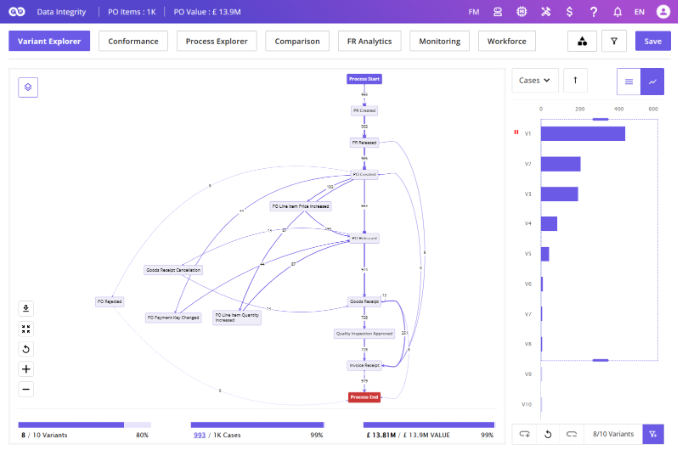
The Variant Explorer helps users understand how a business process is executed across the organization by displaying all possible process variants — the different paths followed during process execution.
It is one of FUTUROOT’s key analysis tools and is designed to help users explore process behavior, identify inefficiencies, and discover improvement opportunities.
Navigating to the Variant Explorer
To open the Variant Explorer:
- Go to the Main Dashboard
- Click on any process tile
This opens the Variant Explorer screen for the selected process.
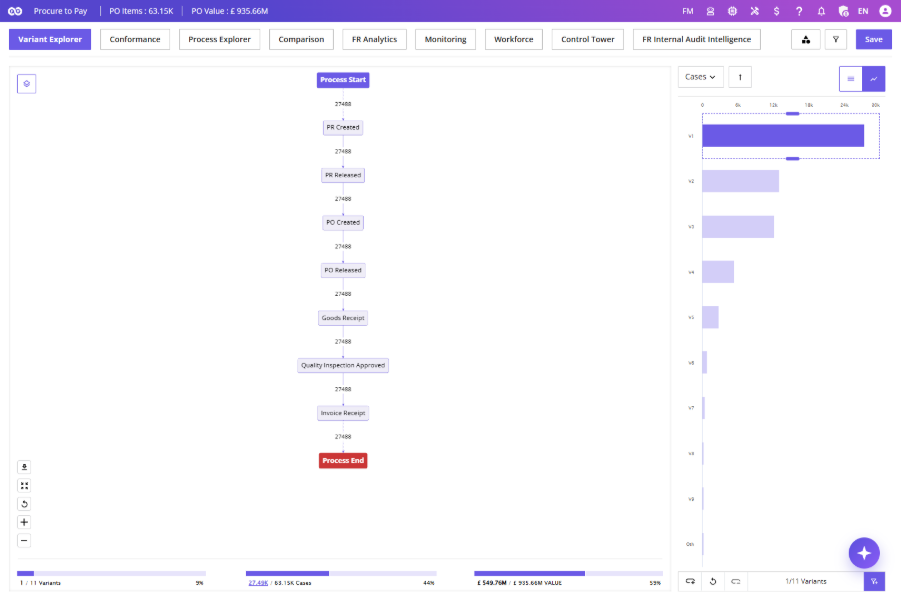
Variant Explorer Layout
The Variant Explorer primarily consists of:
- Process Map
- Variants Chart
- Process KPIs
- Analysis & Interaction Tools
By default, the most frequently occurring variant is selected and displayed in the Process Map.
Below the Process Map, users can view key KPIs such as:
- Number of Variants
- Total Cases
- Total Value
Users can also sort variants based on:
- Cases
- Value
- Time
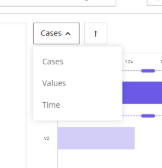
Each sorting option supports:
- Ascending order
- Descending order
Additional utilities include:
- Download & Reset
- Zoom In / Zoom Out
Process Map
The Process Map is a visual representation of how the process is executed in the business system.
It helps users:
- Understand process flow
- Identify bottlenecks
- Analyze deviations
- Explore process behavior visually
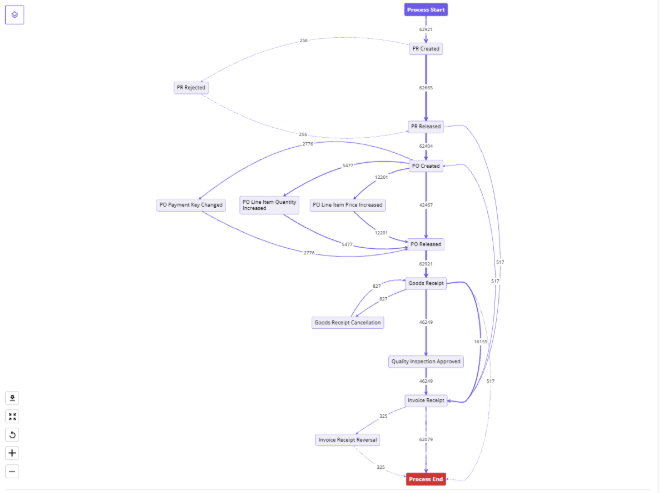
Downloading the Process Map
Click the Download option on the left side of the Process Map to export it in SVG format.
Adjusting the Process Map
The following controls are available on the left side of the Process Map:
- Download
- Zoom to Fit → Fit the complete process map within the screen
- Reset → Reset zoom level
- + → Zoom In
- – → Zoom Out

Process Map Panel
The Process Map Panel also known as the TOOLBAR is in the top-left corner of the Process Map.
It contains options such as:
- Process Map View
- Hide Activity
- Cases
- Ideal Process
- Find Activity
Hide Activity
The Hide Activity feature allows users to temporarily remove selected activities from the Process Map for focused analysis.
Steps:
- Click the Hide Activity icon
- Select the activities to hide
- Click Apply
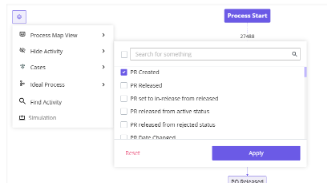
The Process Map refreshes and displays the updated flow without the selected activities.
Activity Details
Users can right-click on any activity in the Process Map to open the Activity Details window.
This window provides insights such as:
- Total cases containing the activity
- Starting cases
- Ending cases
- Cases with or without the activity
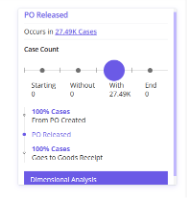
Available Filters
- Starting: Displays cases where the selected activity is the first activity.
- Without: Displays cases where the activity is absent.
- With: Displays cases containing the activity.
- End: Displays cases where the activity is the last activity.
Clicking any of these options automatically applies the corresponding filter.
The window also displays:
- Most common preceding activities
- Most common succeeding activities
Users can click the Cases hyperlink to open detailed:
- Case Details
- Event Details
Dimensional Analysis
Users can access Dimensional Analysis by right-clicking an activity or connector and selecting the option from the menu.
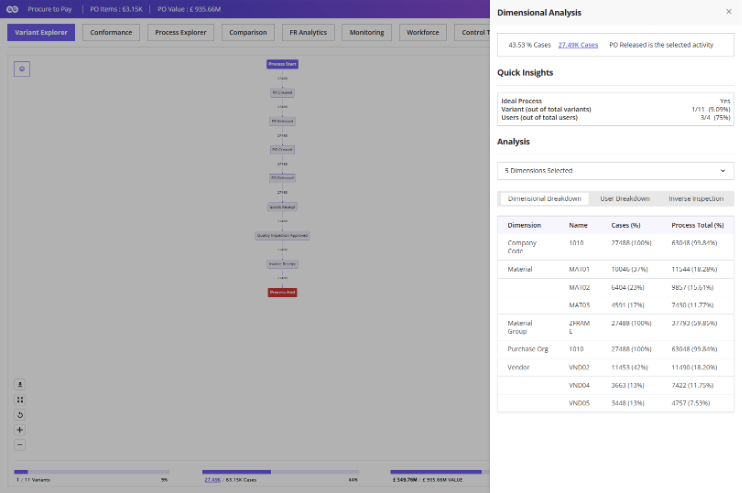
A side panel opens with detailed analysis for the selected activity or path.
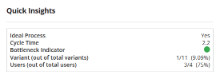
Quick Insights
It provides visibility into Ideal Process Presence and Variant Coverage for Activities, while Paths additionally highlight Average Cycle Time, Bottleneck Indicators, and User Coverage.
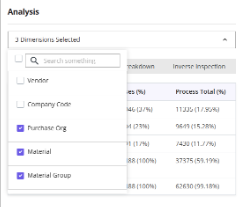
Analysis Section
Users can customize the analysis by selecting or removing dimensions, with dimensional breakdowns updating dynamically based on their selections.
Variant Selection
The Variants Chart is displayed on the right side of the Process Map.
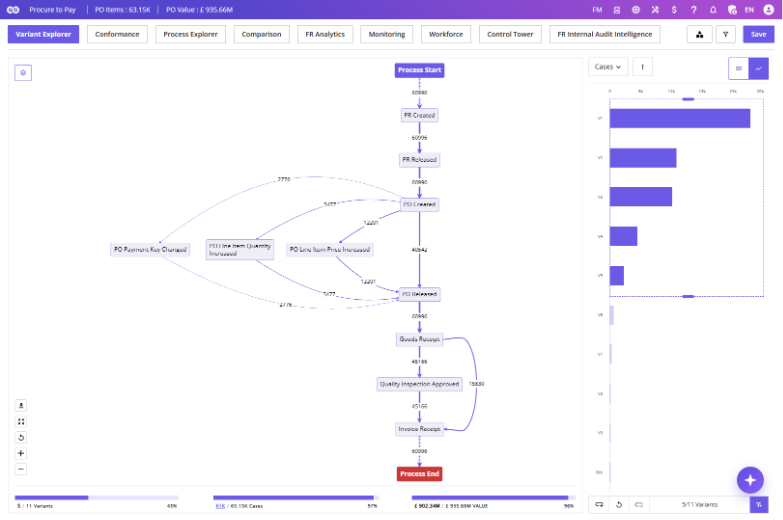
It shows:
- Available variants
- Associated case volumes
- Variant distribution
Selecting Variants
Users can switch between:
- Graph View
- List View
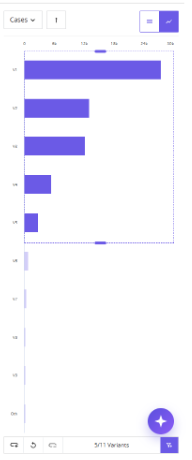
Graph View
Variants can be selected using the dragger, with selection limited to consecutive variants.
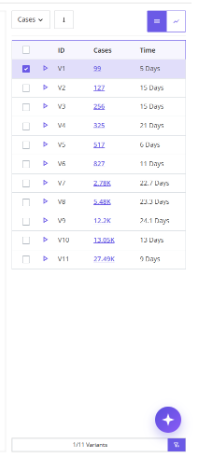
List View
Users can select multiple non-consecutive variants, with all selected variants clearly highlighted for easy identification.
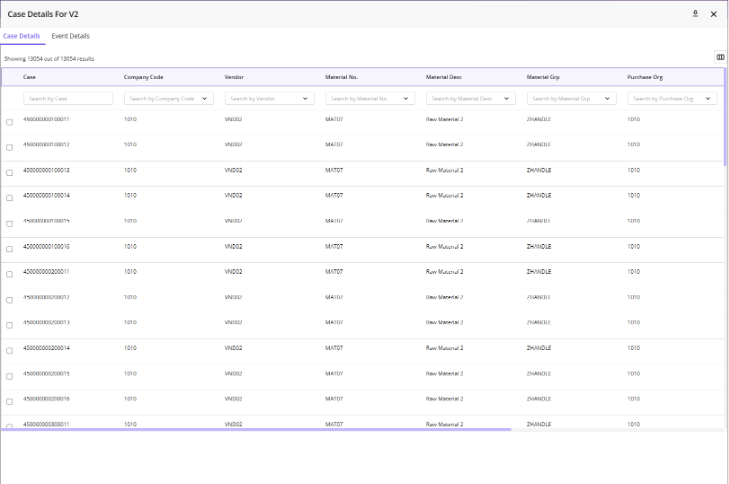
In List View, clicking the Cases hyperlink opens the Case Details and Event Details for the selected variant.
Animating the Process
Users can animate process flow in both graph & list view
Hover over a variant and click the Play icon to view process flow animation.
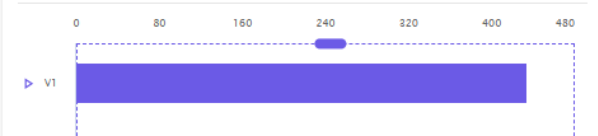
The animation visually highlights the selected process path.
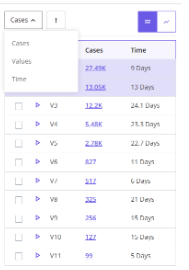
Sorting Variants
Variants can be sorted by Cases, Value, or Time, with users able to switch between ascending and descending order.
KPI-Based Sorting
Users can sort variants using custom KPIs
To enable KPI-based sorting:
- Go to KPI Management
- In either Create/Edit mode you will notice a KPI Based Sorting checkbox.
- Enable it.
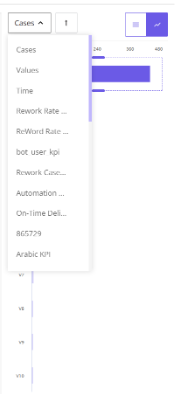
Then the KPI becomes available in the Variant Sort dropdown. Variant tooltips also display KPI values during KPI-based sorting.
Setting Variants as Ideal Process
Selected variants can be saved as an Ideal Process.
Steps:
- Select the required variants
- Click Set as Ideal Process
- Enter the Ideal Process name
- Click Save
Selection Rules:
- List View → Supports non-consecutive selection
- Graph View → Supports only consecutive selection
More & Less Variants
By default, only the top variants are displayed individually, while remaining variants are grouped under Others.
Users can:
- Click Increase Variants to load more variants
- Click Decrease Variants to reduce visible variants
- Click Reset to restore the default view
Setting Variants as Filters
Users can apply selected variants as global filters by clicking the Filter icon at the bottom-right of the Variants Chart.
Variant Metrics
Right-clicking a selected variant opens the Variant Metrics window.
This includes metrics such as:
- Total Cases
- Case Coverage
- Total Value
- Average Value
- Minimum / Maximum Value
- Average Cycle Time
- Minimum / Maximum Time
- Activity Count
- Activity Coverage
- Log Timeframe
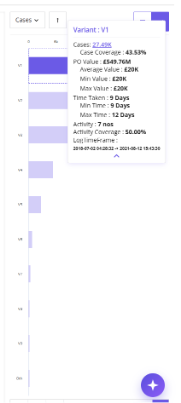
Users can click the More icon to view additional metrics.
Process Map Metrics
The Process Map Metrics dropdown controls the metric displayed on Process Map connectors.
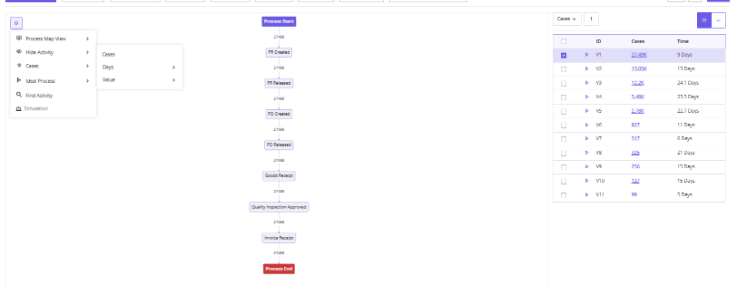
Available metrics include:
Cases: Displays case count between activities.
Days: Displays average time between activities.
Additional time metrics:
- Days (Min)
- Days (Max)
- Days (Mean)
Value: Displays value flow between activities.
Available value metrics:
- Value (Min)
- Value (Max)
- Value (Mean)
- Value (Total) Value (Min)
- Value (Max)
- Value (Mean)
- Value (Total)
Bottleneck Analysis
The Bottleneck Analysis feature helps identify delays between activities.
It can be accessed from:
Process Map View → Bottleneck
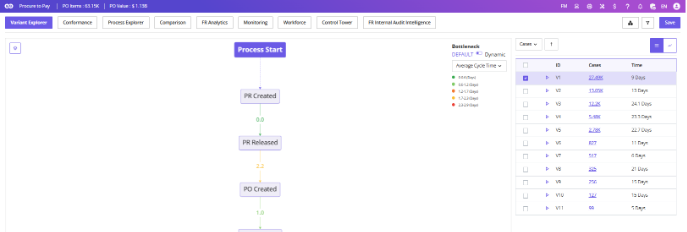
| Feature | Description |
|---|---|
| Bottleneck | Displays process connectors as a heat map based on delay duration, with connectors color-coded according to the time taken between activities. Legends indicate the corresponding time ranges. |
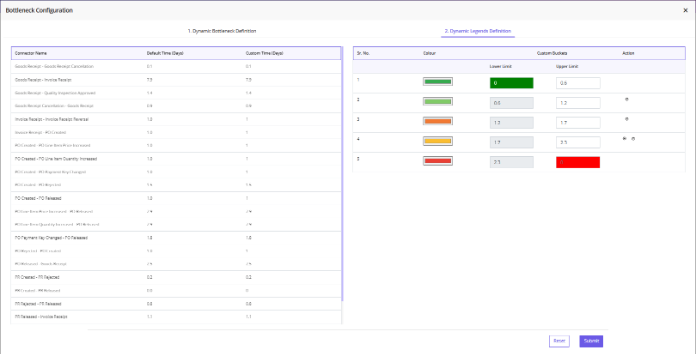
| Dynamic Bottleneck | Users can switch from Default Bottleneck to Dynamic Bottleneck to define custom thresholds, legends, and bucket ranges. |
Dynamic Bottleneck Configuration

Step 1: Dynamic Bottleneck Definition
Users can:
- Enable connectors
- Define custom target times
- Search connectors
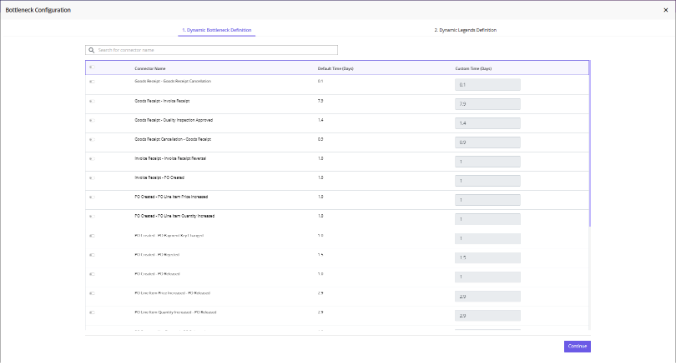
Step 2: Dynamic Legends Definition
Users can:
- Configure bucket ranges
- Modify colors
- Add or remove buckets
Minimum supported buckets: 2
After configuration, click Submit to apply changes.
Bottleneck Metrics Table
The Bottleneck Metrics table displays:
- Connector
- Cases
- Bottleneck Cases
- Default Time
- Percentage Delay
Selecting a connector in the Process Map highlights the corresponding row in the table.
Users can apply filters directly from the table.
BPMN Viewer
The BPMN Viewer displays the selected variant using BPMN (Business Process Model and Notation) standards. The BPMN diagram updates dynamically based on selected variants.
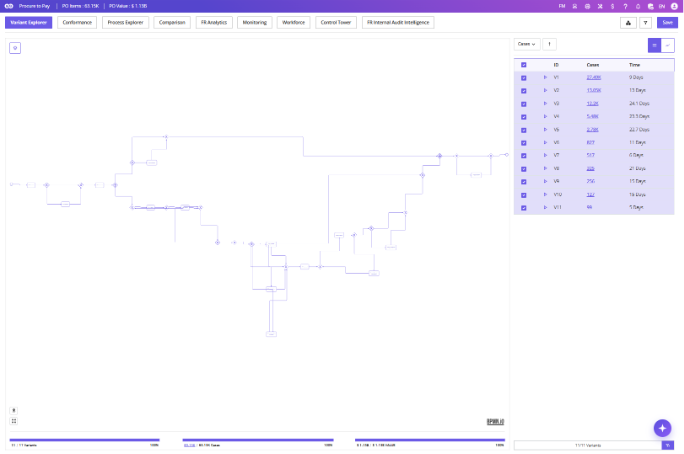
When BPMN Viewer is enabled, users can download the Process Map as SVG or BPMN.
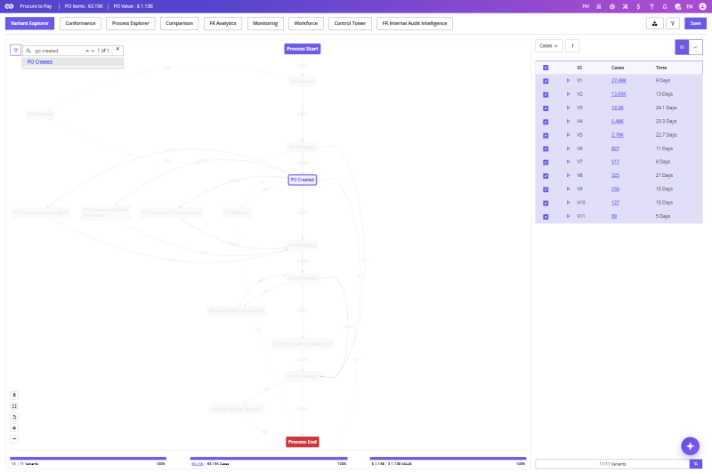
The Find Activity option in the Process Map Toolbar allows users to quickly locate activities.
Steps:
- Click Find Activity
- Enter the activity name
- Press Enter
Matching activities appear as suggestions.
Process Metrics
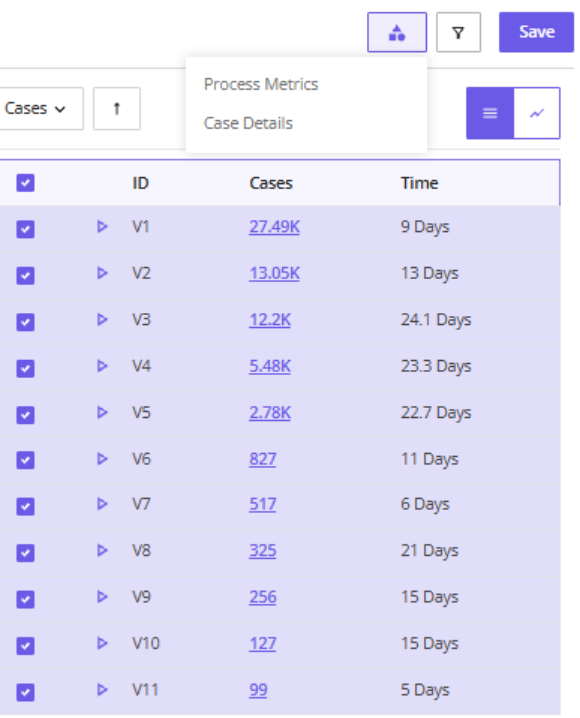
The Process Metrics screen provides KPI-based analysis for selected variants.
Users can access this feature from the Task Menu.
Applying KPIs
Steps:
- Open Process Metrics
- Select required KPIs
- Click Apply
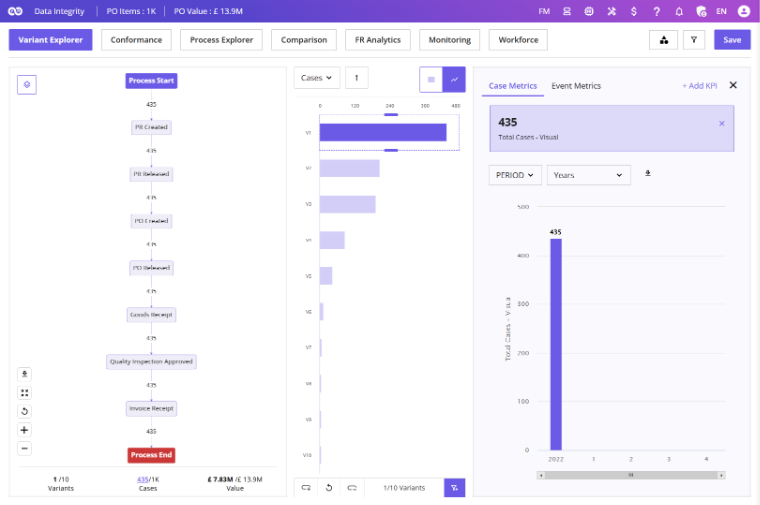
The Process Metrics screen loads with the selected KPIs.
Case Metrics & Event Metrics
The screen supports both:
- Case Dimensions
- Event Dimensions
Case Dimensions
Case dimensions remain constant for a Case ID.
Examples:
- Company Code
- Vendor
- Plant
Right-clicking a graph displays:
- Case count
- Hyperlinks to Case Details
Event Dimensions
Event dimensions vary within the same Case ID.
Examples:
- User
- Activity
- T-Code
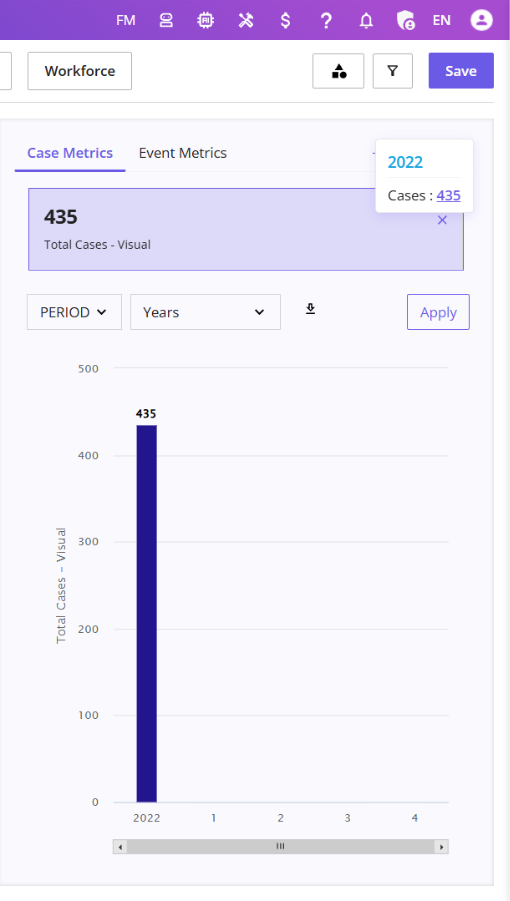
Only event-related dimensions appear in Event Metrics.
Accessing Case Details
Users can access detailed event log information through the Case Details option in the Task Menu.
The screen contains:
- Case ID
- Activity
- Timestamp
- Additional business attributes
Separate tabs are available for:
- Case Details
- Event Details
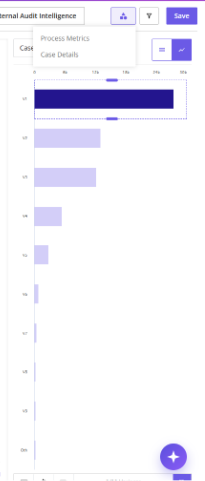
Each column contains a search box for filtering records.
Case Details Export
A Download button is available next to the Close (X) button in the Case Details window.
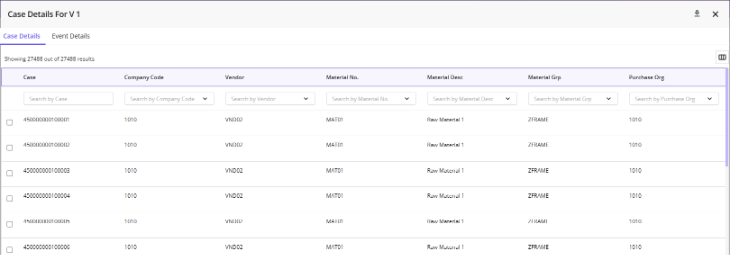
Clicking the button:
- Exports case data in Excel format
- Sends the file to the user’s registered email address
This feature is available across all supported navigation paths.