Comparison
The Comparison module allows you to compare process execution across different dimensions, helping identify variations, inefficiencies, and opportunities for improvement.
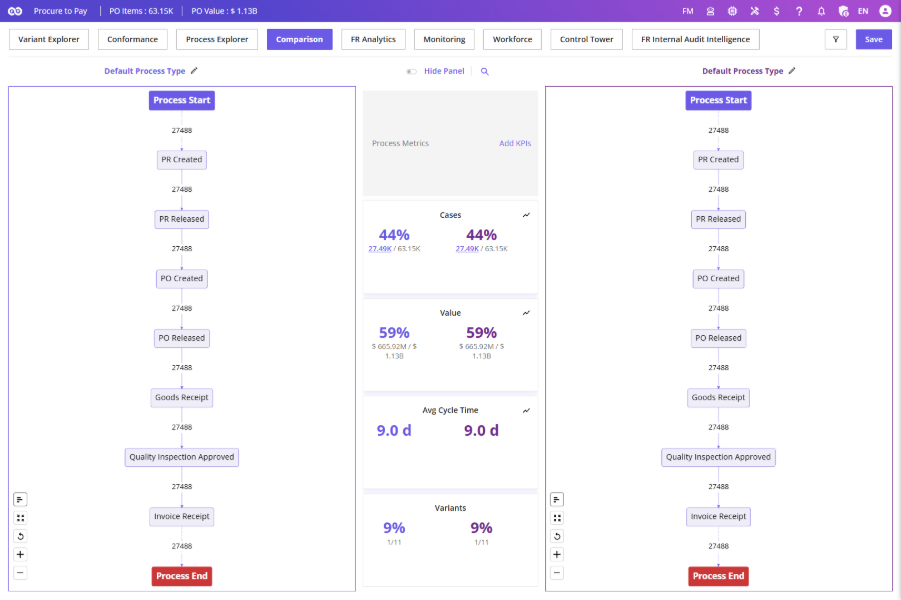
Access via the Comparison tab next to Process Explorer. Two Process Maps are displayed side-by-side.
Selecting Dimensions
Available dimensions include: Process Type, Time Period, Vendor, Company Code, Purchase Organization, Material, Material Group..
- Click Dimension Select.
- Choose required dimension(s).
- Select comparison values for Process Map 1 and Process Map 2.
- Click Apply.
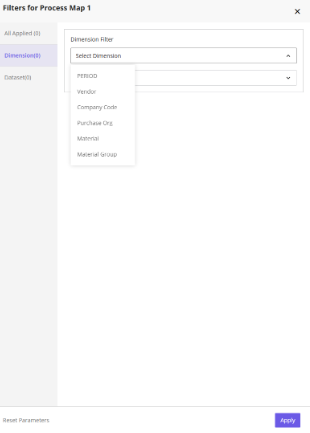
To add more dimensions, click Dimension Select again. To reset, click Reset Parameters.
Understanding the Comparison View
After applying dimensions, the screen is divided into three sections:
- Process Map 1 – First selected dimension value
- Process Metrics – Cases, Total Value, Average Cycle Time, Variants for both maps
- Process Map 2 – Second selected dimension value
Variant Selection
Each Process Map includes access to a Variants Chart.
Using the Variants Chart, you can:
- Select specific variants
- Include or exclude variants
- Compare process behavior for selected variants
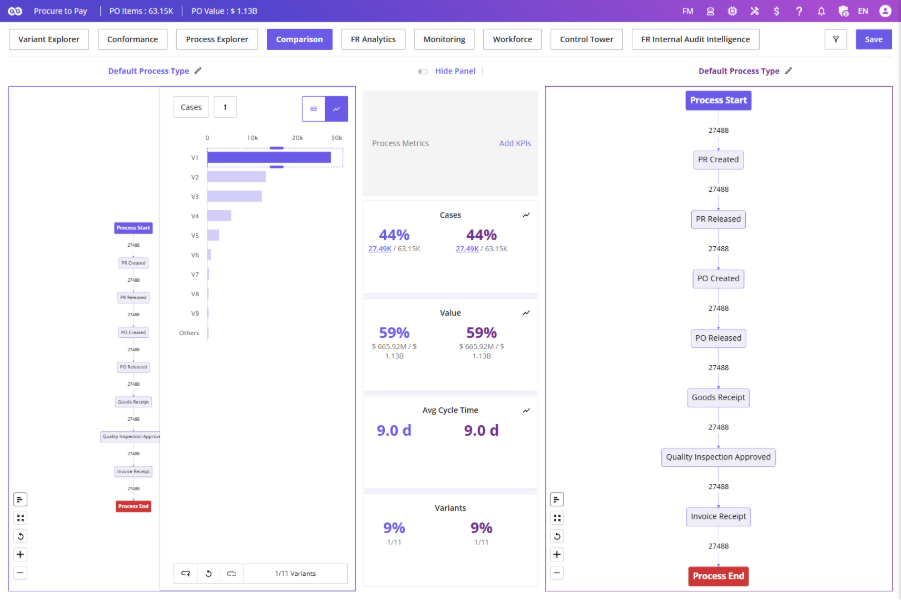
The functionality is identical to the Variants Chart available in Variant Explorer.
Process Metrics
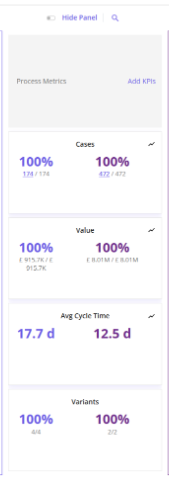
The Process Metrics panel provides a summarized comparison of key process KPIs.
Available metrics include:
- Cases
- Total Value
- Average Cycle Time
- Variants
Some metrics include hyperlinks that open Case Details for further investigation. Users can also switch between numerical and graphical views where available.
Change Dimensions
At any point, you can modify the comparison criteria by clicking Dimension Select again.
This allows you to:
- Add dimensions
- Remove dimensions
- Change selected values
The comparison view updates automatically after applying the changes.
Adding Custom KPIs
To gain deeper insights, you can add custom KPIs to the comparison view.
Steps:
- Click Add KPI.
- Select one or more KPIs from the available list.
- Click Apply.
The selected KPIs are displayed alongside the standard process metrics for both Process Maps.
Multiple KPIs can be added, removed, and reviewed using the KPI panel.