KPI Management
Key Performance Indicators measure process performance and business outcomes. KPI Management lets you create, edit, copy, publish, and configure KPIs used across all FUTUROOT modules.
KPIs can be used in: Process Explorer, Variant Explorer, FR Analytics, App Management, Business Cases, and Monitoring Watchpoints.
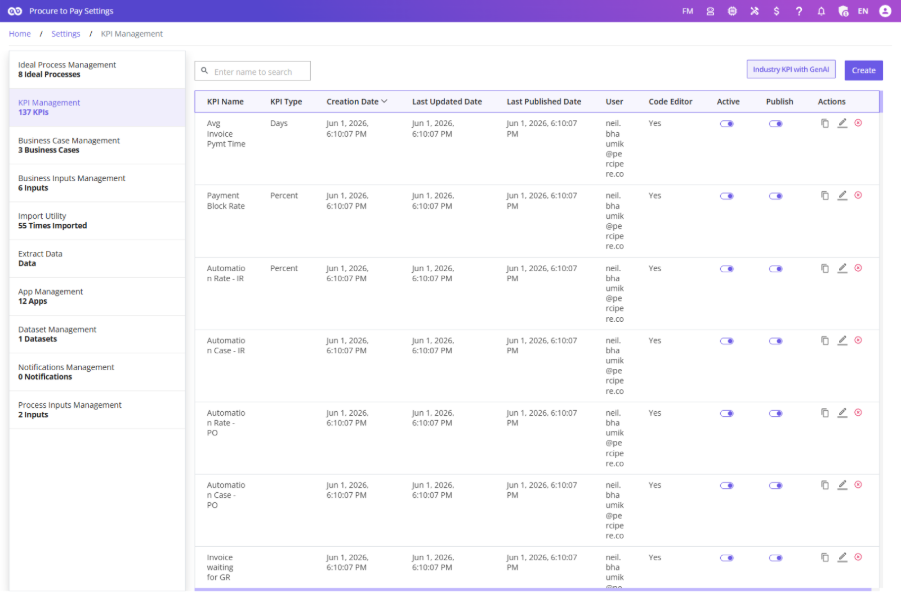
Navigating to KPI Management
Steps to navigate:
- Open Process Settings.
- Select KPI Management.
The KPI Management screen displays all available KPIs along with their status and configuration details.
Creating a KPI – Visual Editor
Click Create KPI to open the KPI creation screen.
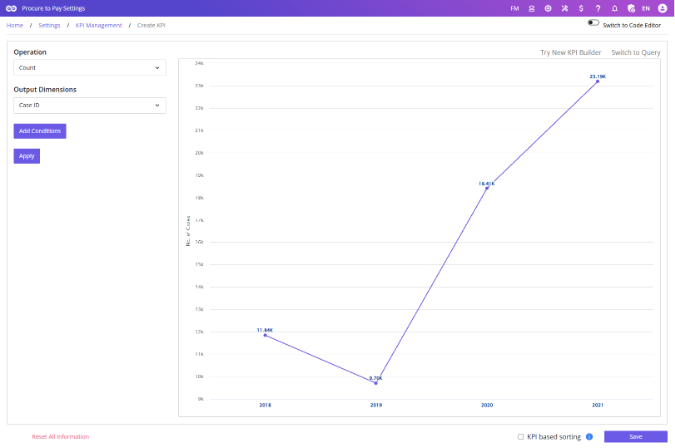
Steps:
- Define Basic Information: KPI Name and Description.
- Select Calculation Type: Count, Sum, Average, Maximum, Minimum, or Ratio.
- Select Output Attribute: Case ID, Quantity, Net Value, Time Difference, etc.
- Configure Conditions: Use Event Selection, Attributes, and Comparisons. Combine with logical operators.

- Review the generated logic and click Save.
Creating a KPI using Code Editor
For advanced users, FUTUROOT provides a SQL-based KPI Code Editor.
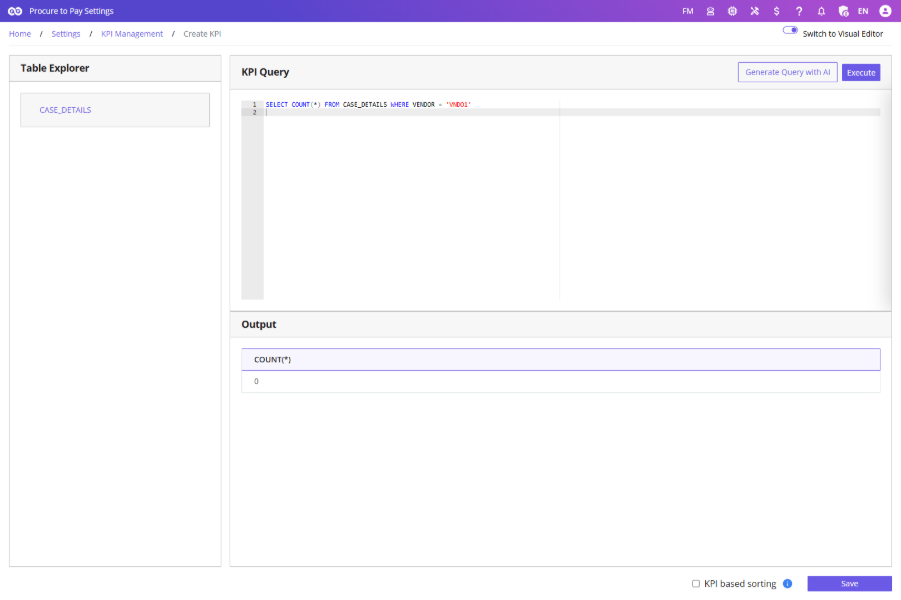
Switching to Code Editor
Enable the Switch to Code Editor toggle.
The screen contains: Table Explorer, KPI Query Editor & Output Preview
Writing Queries
Write SQL expressions returning a single value. Recommended functions: COUNT(), SUM(), AVG(), MAX(), MIN(). Click Execute to preview, then Save.
Testing the KPI
Steps:
- Click Execute to preview the output.
- Once validated, click Save.
KPIs created using this method are identified by Code Editor = Yes in KPI Management.
Generate Query with AI
FUTUROOT includes AI-assisted KPI creation.

How It Works:
- Open KPI Code Editor.
- Click Generate Query with AI.
- Enter a business requirement in plain language.
- Click Generate.
The AI generates a SQL query automatically and inserts it into the editor.
Best Practice: Always review and validate the generated SQL before saving, as AI-generated queries may require adjustments.
AI Query Logs
The Show Logs option provides visibility into previously generated AI queries.
The log includes: User Name, Timestamp, User Prompt, Generated SQL & AI Model Used
Logs can be downloaded as a PDF report.

The AI generates relevant KPI suggestions, which can be reviewed, modified, and saved into KPI Management.
{image pending due to feature not working}
Generated KPIs are initially created as Inactive and must be activated before use.
Industry KPI with AI
The Industry KPI with AI feature helps users discover KPI recommendations based on industry and process context.
Required Inputs: Industry, Process
- Open KPI Code Editor → click Generate Query with AI.
- Enter a business requirement in plain language.
- Click Generate. The AI inserts a SQL query into the editor.