FR-Analytics
FR-Analytics provides an interactive workspace for analyzing published FR Apps — collections of KPIs designed to monitor and analyze a specific business process.
The FR-Analytics tab is located next to the Comparison tab. It displays all FR Apps available to the user across three tabs:
- FUTUROOT Apps – Created and published FR Apps
- Favourites – Apps marked as favourites (click the Star icon to add)
- Marketplace Apps – Standard packages provided by FUTUROOT
FR Analytics Dashboard
The dashboard provides interactive KPI visualizations through Graphs, KPI Cards, and Tables. Analyze performance, identify trends, and investigate process behavior.
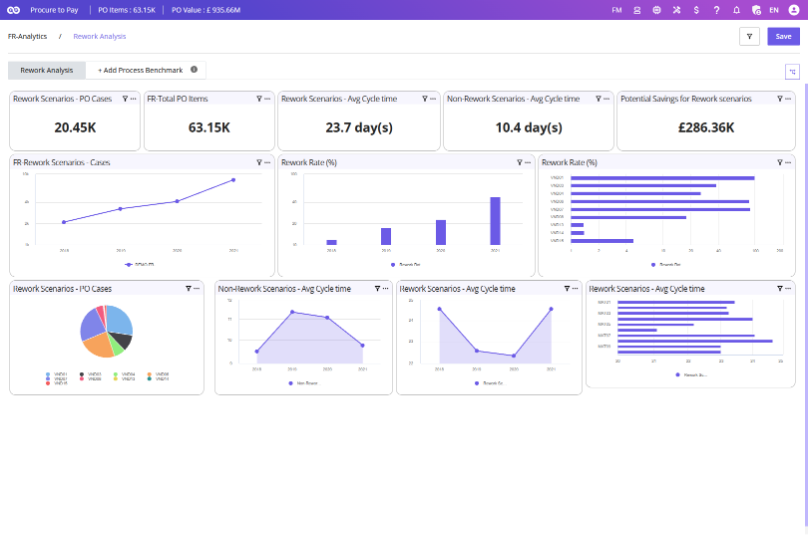
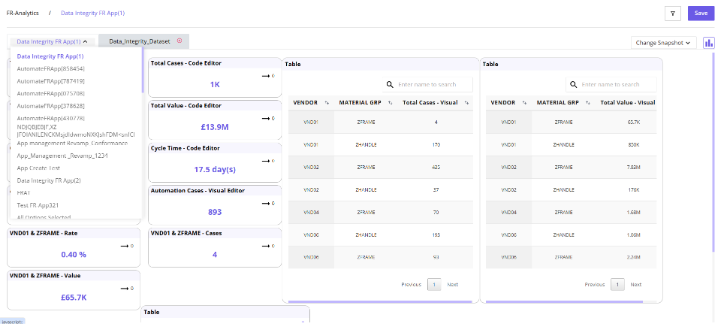
FR-Analytics Dropdown for Easy Switching
Navigation: Inside FR-App → After enabling Process Benchmarking
How It Works:
- Open any FR-App.
- Enable Process Benchmarking by selecting a snapshot.
- To return to the FR-App from the Process Benchmark view, click the dropdown menu and select the relevant FR-App.
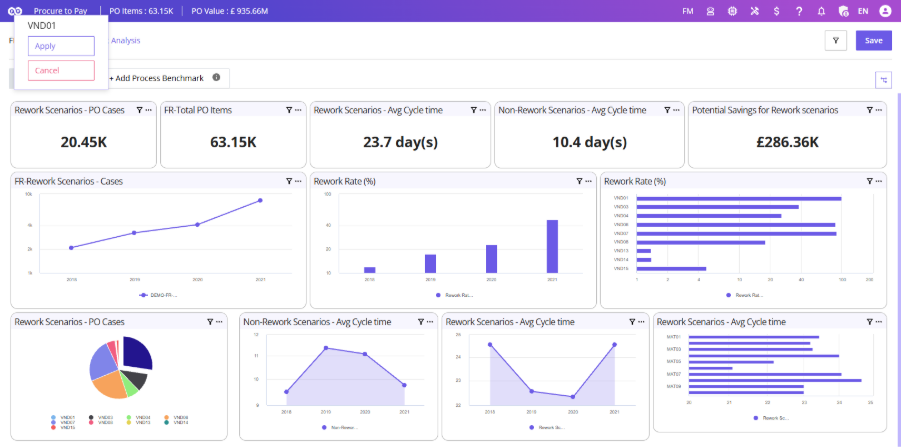
Applying Filters from Graphs
Filters can be applied directly from dashboard visualizations.
Steps:
- Click a bar, segment, or data point within a graph.
- Select Apply. The selected value is applied as a global filter.
To cancel the action, select Remove. This enables quick drill-down analysis without opening the Global Filters panel.
Widget Actions
Each widget includes a More Options (⋮) menu:
| Action | Description |
|---|---|
| Export to CSV | Download widget data in structured CSV format |
| Case Details | Drill down from KPIs into case-level information |
| Create Breakdown | Generate dimensional breakdown analysis |
| Add Filters | Apply additional filters to the widget |
| Threshold Management | Configure color-coded KPI limits |
Export to CSV
Export widget data in a structured CSV format.
Steps
- Click the More Options (⋮) menu.
- Select Export to CSV.
The widget data is downloaded automatically.
Case Details
| Accessed from | Displayed data reflects |
|---|---|
| Graph Widgets | The selected KPI |
| KPI Cards | Widget configuration |
| Table Widgets | Active filters |
A download option is available for further analysis.
Case Details from Table Rows :
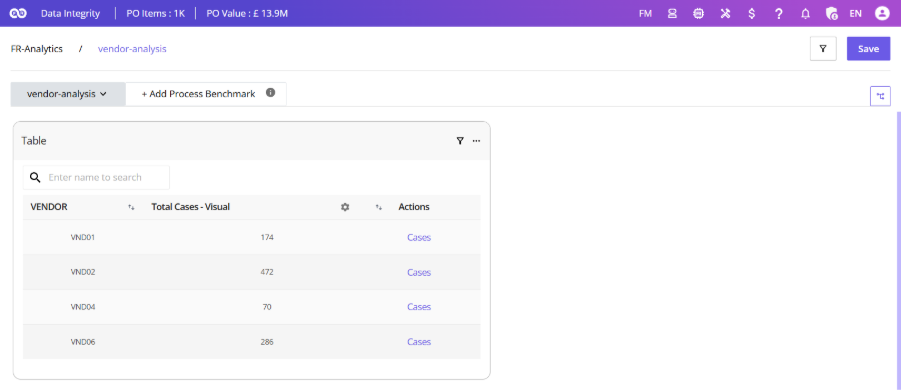
Table widgets also provide row-level access to Case Details.
Steps:
- Click the Case Details icon in the Actions column.
- View detailed information related to the selected row.
The displayed data respects all active filters and table conditions.
Threshold Management
Monitor KPI performance using configurable limits and visual indicators.
- Open the widget’s More Options (⋮) menu.
- Select Threshold.
- Configure threshold values and save.
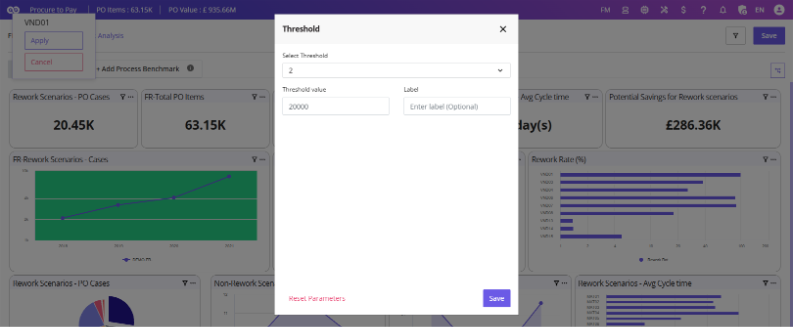
Features:
- Multiple thresholds per table
- Independent settings per column
- Color-coded KPI indicators.
This provides better visibility into KPI performance and exceptions.
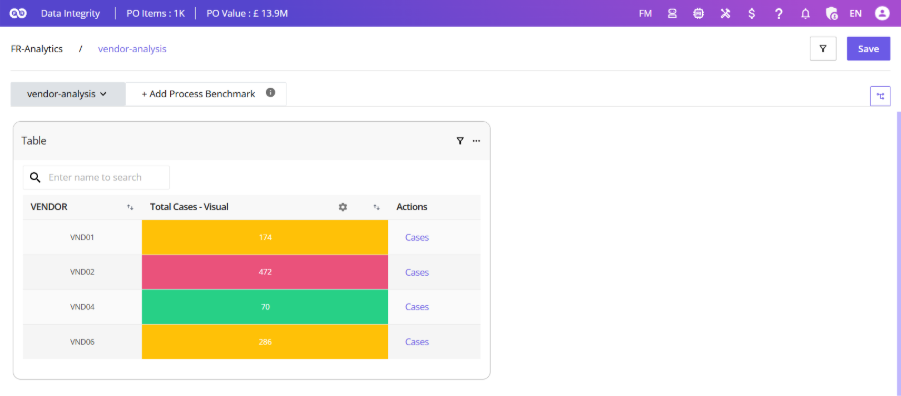
Apply Button: When a user selects a row or value within a widget, an Apply button becomes available. Selecting Apply immediately filters the dashboard based on the chosen value, enabling faster exploration and analysis.