Conformance
The Conformance Module analyzes deviations in the AS-IS process against the Ideal Process defined in Ideal Process Management, ensuring process standardization.
The Conformance Module is used to analyze deviations in the AS-IS process against the ideal or target process defined in Ideal Process Management.
In short, the analysis performed in the Conformance screen helps ensure process standardization by identifying and highlighting deviations from the defined ideal process.
Navigating to Conformance Screen
The Conformance tab is located next to the Variant Explorer tab, as shown in the image below. Clicking on this tab opens the Conformance Module.

Selecting Ideal Process
The Select Ideal Process button is located at the center of the Conformance screen.
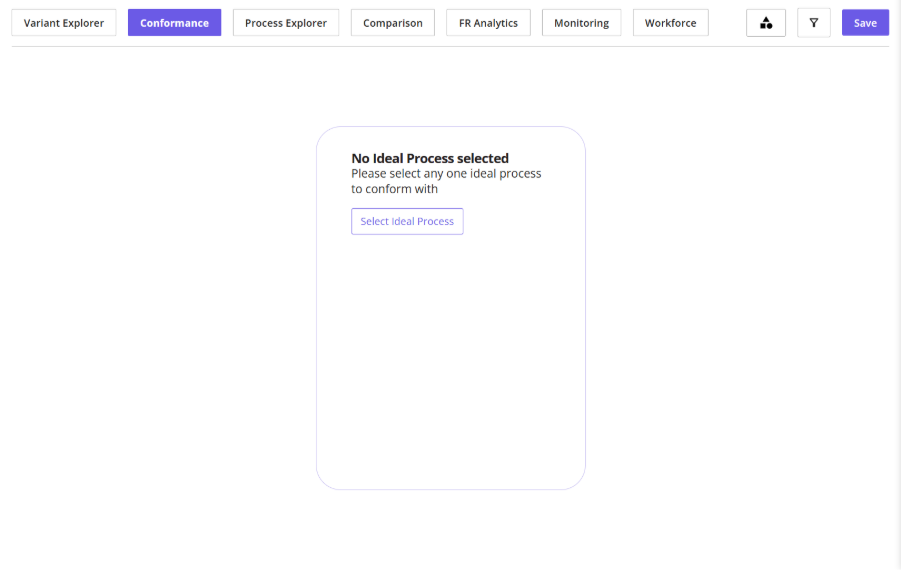
Clicking this button opens a selection panel where you can choose the relevant ideal process, as shown below.
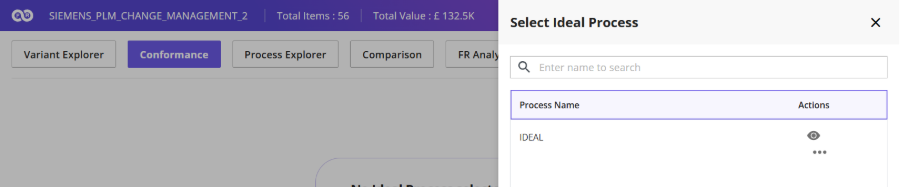
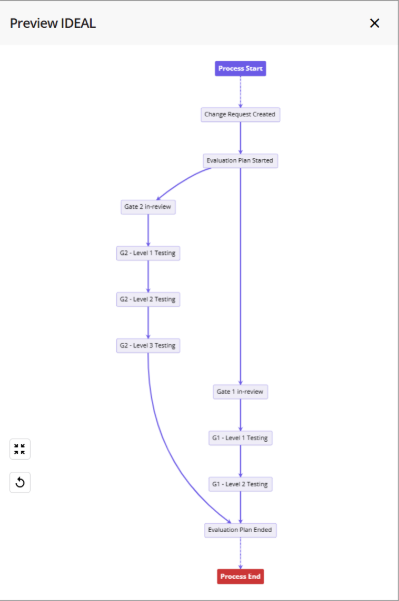
To preview the selected ideal process before applying it, use the eye icon.
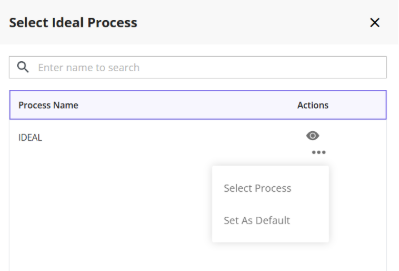
Click on the three dots and then on Select Process to apply the chosen ideal process for comparison with the AS-IS process. And click Set as Default to make the selected ideal process your default choice.
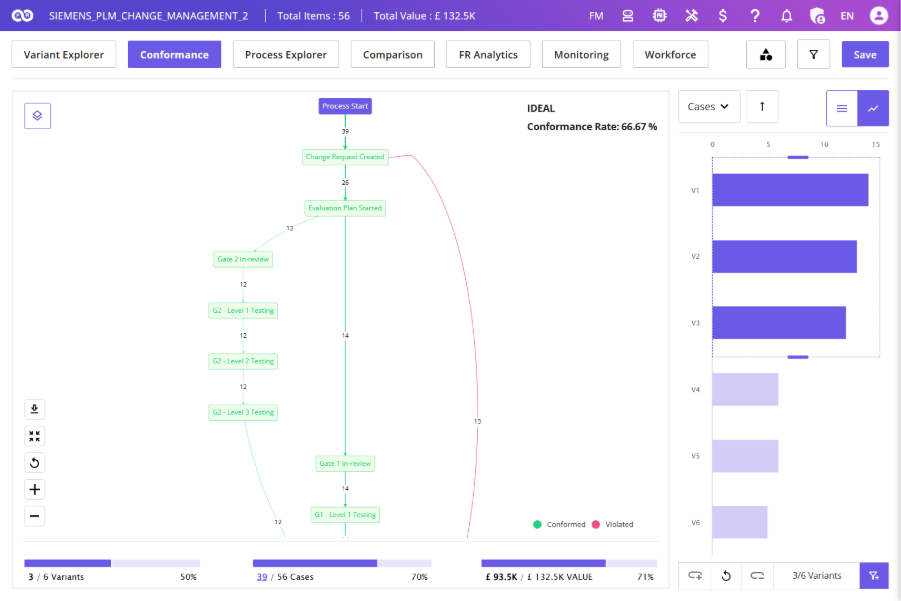
In the Process Map:
Green paths indicate compliance with the Ideal Process.
Red paths indicate deviations from the Ideal Process.
Violation-Based Sorting:
In addition to Cases, Value, and Time sorting options in the Variant Sort dropdown, a Process Violations option is also available.
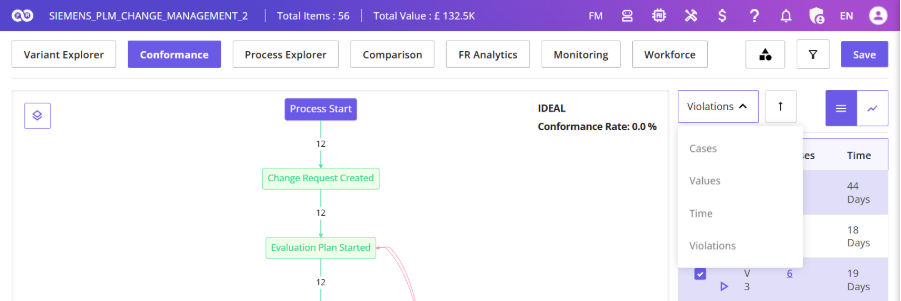
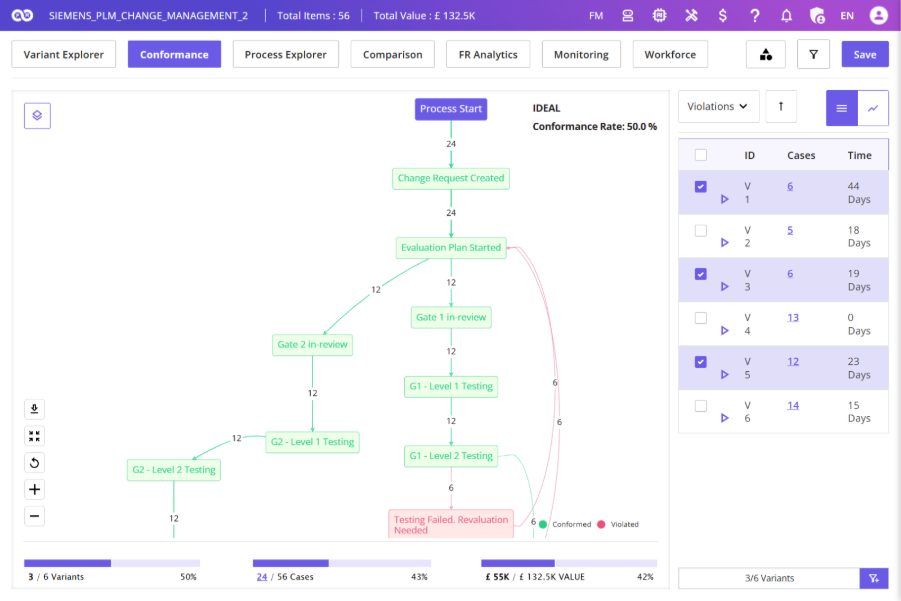
Selecting Violations sorts the variants based on the number of violations and variants with higher violations are prioritized accordingly.
Additionally, the Variant Tooltip displays the number of violations when this sorting option is applied.
Smart Ideal Process
Smart Ideal Process uses a mathematical model to automatically recommend the most suitable ideal process for a business process.
Users can define the basis for the ideal process by selecting:
- Default Parameters (such as Cases, Value, Cycle Time, etc.)
- Custom Parameters / KPIs (such as Automation Rate, On-Time Delivery Rate, etc.)
- Mandatory Activities that must be present or absent in the ideal process
These inputs are processed through a scoring model that evaluates process variants and recommends the highest-scoring variant as the Ideal Process, which can then be saved for future use.
Steps to Create a Smart Ideal Process
Step 1 : Open Smart Ideal Process
- Go to Variant Explorer.
- In the Process Map Toolbar, click Ideal Process.
- Select Smart Ideal Process.
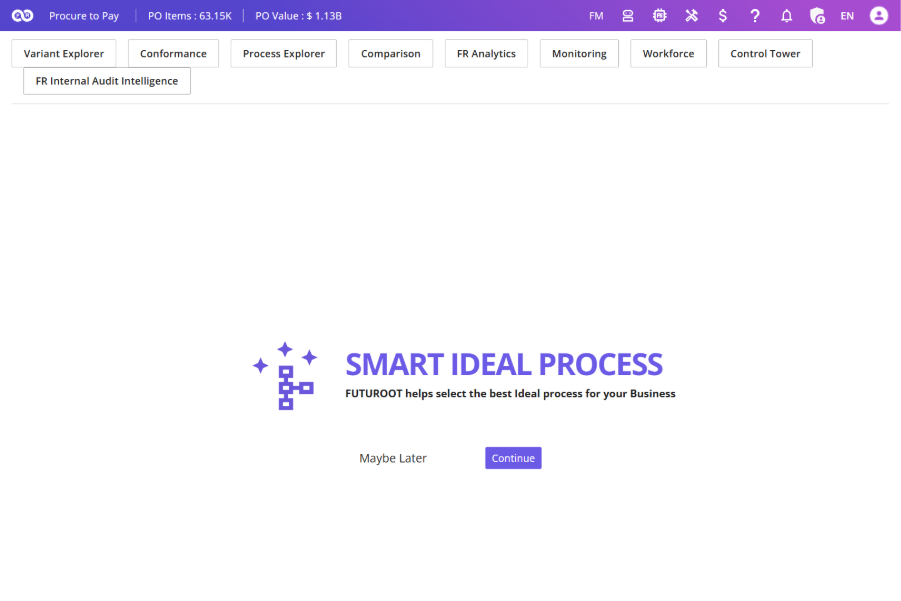
You will be welcomed by the Splash Screen. Click Continue to proceed.
Step 2 : Configure Default Parameters
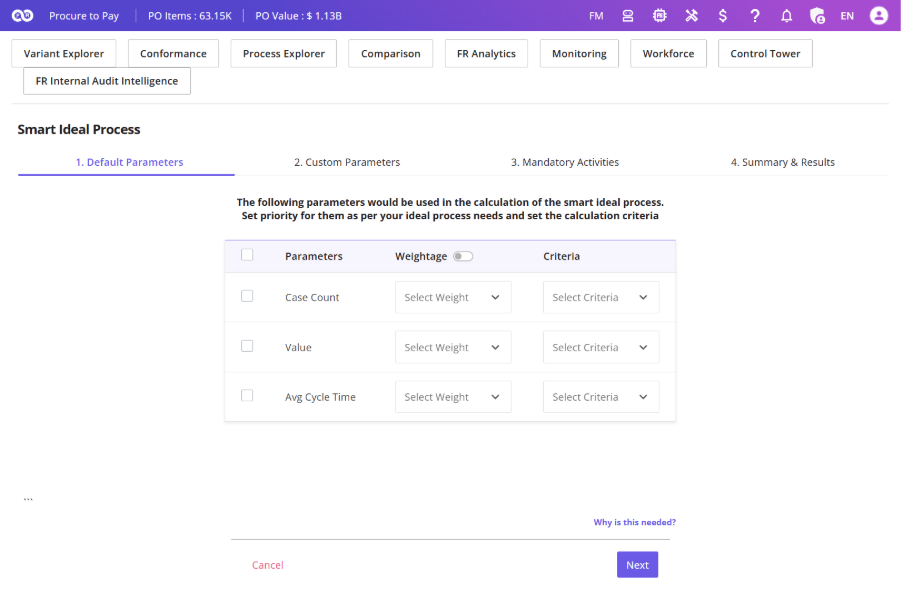
In the Default Parameters section, select the parameters to be used for ideal process calculations.
- Parameter Checkbox – Select from the available default parameters.
- Weightage – Assign a weight (multiplier) to each parameter. You can also enable the toggle to enter custom weightages.
- Criteria – Define how scoring is applied:
- High: Variants with higher values receive higher scores.
- Low: Variants with lower values receive higher scores.
(Example: For Time, lower values are preferred and therefore receive higher scores.)
- Click Next after completing the configuration.
Step 3: Configure Custom Parameters (KPIs)
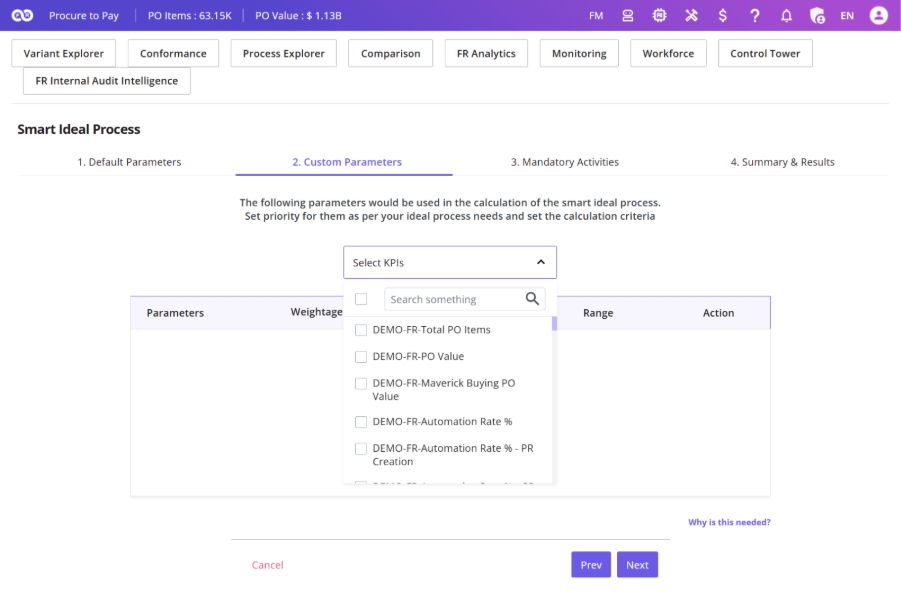
In the Custom Parameters section, select the KPIs to be included in the calculation.
For each KPI, you can configure:
- Weightage
- Criteria
- Acceptable Range
Variants with KPI values outside the defined acceptable range will be excluded from scoring for that KPI.
Click Next to continue.
Step 4: Configure Mandatory Activities
In the Mandatory Activities section, define process activities that must be either:
- Present in the ideal process
- Absent from the ideal process

Steps:
- Select the required activities.
- Specify whether each activity should be Present or Absent.
Note: Variants that fail mandatory activity checks will appear in Red on the Results page.
Click Summary & Results to proceed.
Step 5: Review Summary
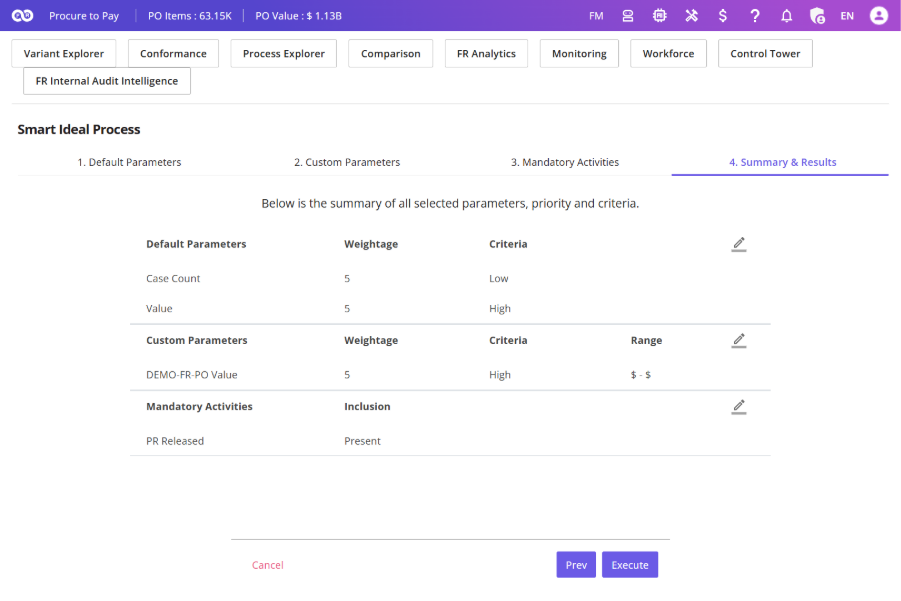
The Summary tab displays all selected configurations.
Steps:
- Click the Edit icon next to any section to make changes.
- Once the configuration is finalized, click Execute to begin the calculation.
Step 6: View Results
Based on the selected configuration, the system performs background calculations and displays the variants in descending order of score
Key features:
- The top-scoring variant is selected by default.
- The Preview section on the right displays the selected variant.
- You can add or remove variants and view the updated preview.
- Variants that fail mandatory activity checks appear in Red.
- If you want to dive deeper into how this is done, you can do so through the See Calculations section.
You can also go back and modify the configuration to recalculate the results.
Step 7: Save the Ideal Process
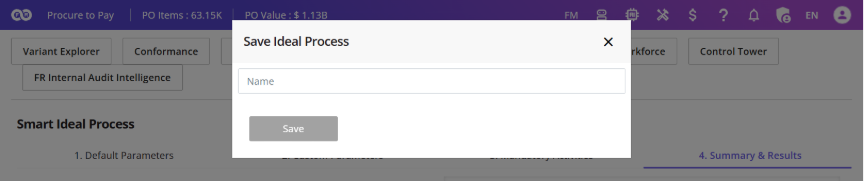
Once satisfied with the recommendation:
- Save the selected variant as the Ideal Process.
After saving:
- The Ideal Process can be used in Conformance for process analysis.
- It is also added to the Ideal Process Management list.
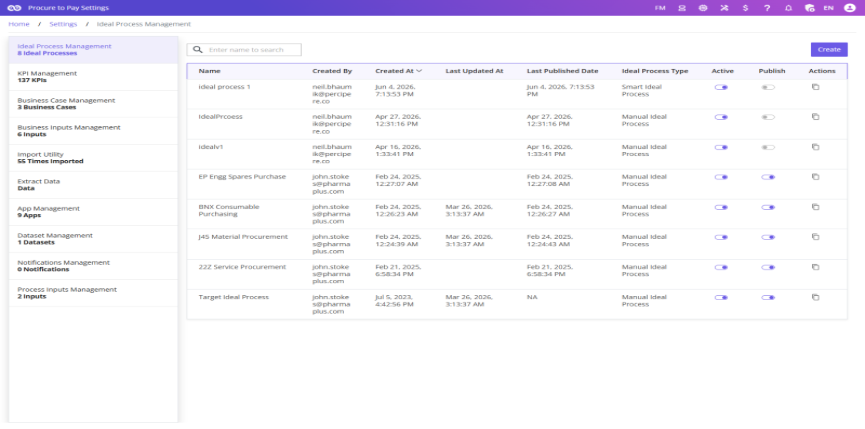
Editing a Smart Ideal Process
You can also create/edit the Smart Ideal Process directly from the Ideal Process Management screen by following the same steps described above.
Root Cause Analysis
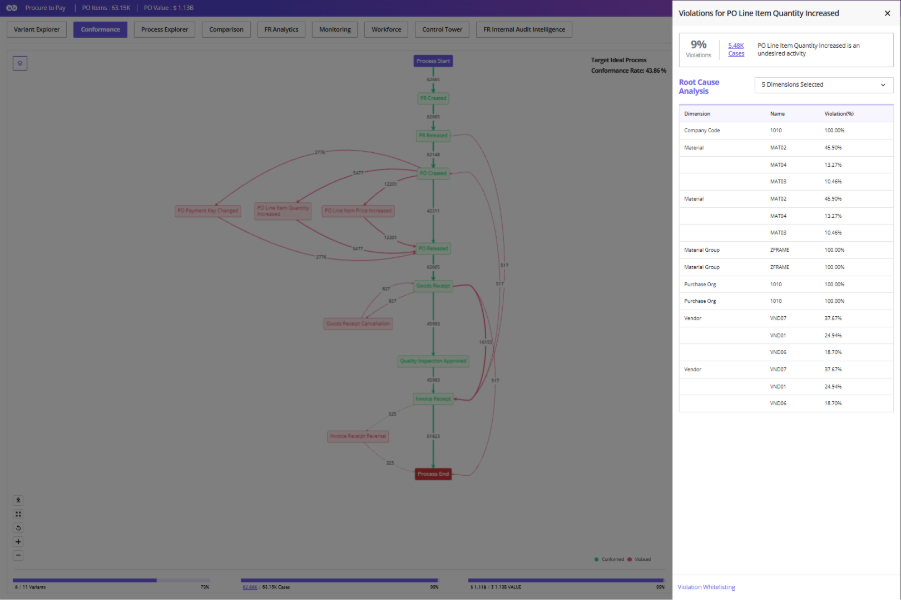
Users can analyze the root causes of process violations by clicking the violated activity or connector highlighted in Red in the process map.
The Root Cause Analysis (RCA) screen provides:
- Violation percentage
- Number of impacted cases
- Detailed case-level information
Clicking the case count hyperlink opens a detailed view containing Case & Event Details.
Root causes of selected violation
Users can analyze the root causes of selected violations across multiple dimensions for deeper process insights.
Change Ideal Process
To change the currently selected Ideal Process:
- Go to the Details Icon
- Click Change Ideal Process
- Select the required Ideal Process from the list
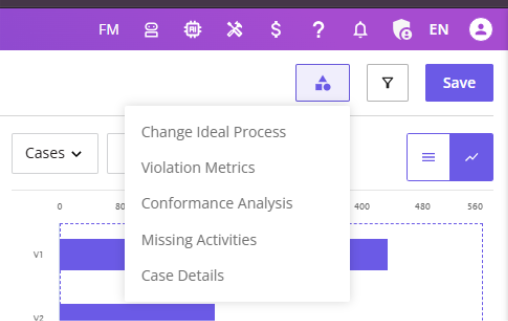
A new screen will open, allowing users to choose a different Ideal Process for analysis.
Missing Activities
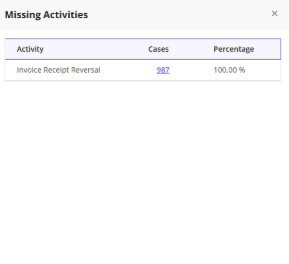
The Missing Activities section displays activities that are part of the Ideal Process but missing in the AS-IS process.
The following KPIs are available:
- Activity – Name of the missing activity
- Cases – Number of affected cases . Clicking the hyperlink opens the Case Details popup
- Percentage – Percentage of cases where the activity is missing
Conformance Analysis
Users can access Conformance Analysis from the Details Icon. This interactive screen helps users analyze violations and identify possible root causes using filters and dimensional analysis.
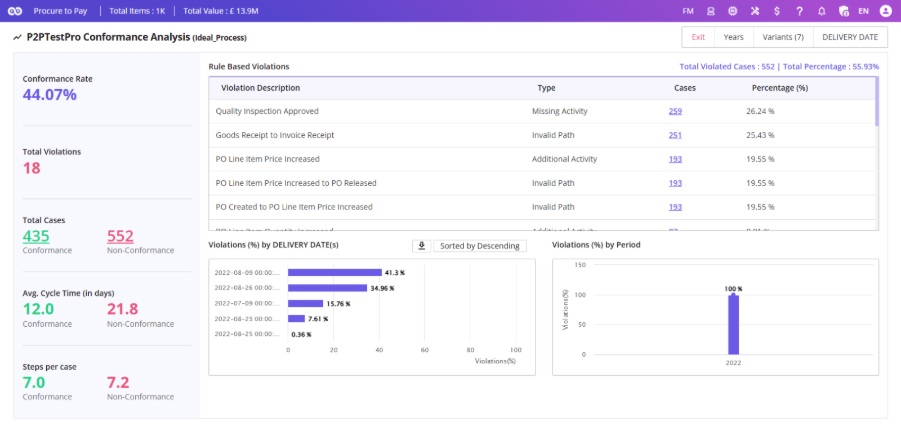
Key Components
1. Single-Value KPIs
Displayed on the left side of the screen:
- Conformance Rate
- Total Violations
- Conforming vs Non-Conforming Cases
Hyperlinks are available for Conforming and Non-Conforming cases, opening the Case Details popup.
2. Violations Table
Located at the top-center of the screen with columns such as:
- Violation Description
- Type
- Cases
- Violation Percentage (%)
Case counts are clickable and open detailed case information.
3. Charts & Analysis
Located at the bottom of the screen:
- Violation analysis across selected dimensions
- Violation trends over time
Violation Metrics
The Violation Metrics screen displays conformance KPIs alongside the process map, enabling users to analyze process deviations and their impact visually.
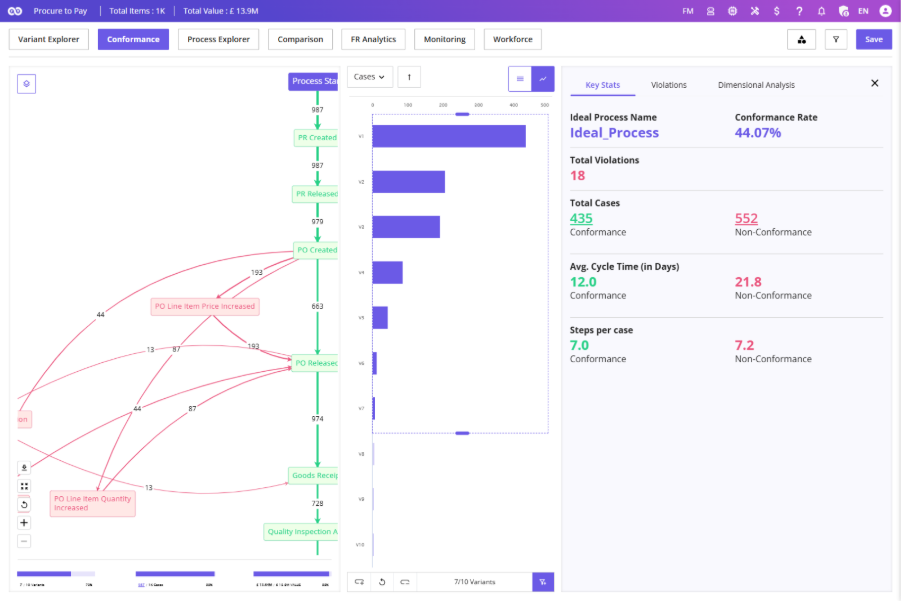
Screen Layout
Left Section
- Process Map
Center Section
- Variants Chart
Right Section
- Key: Displays KPIs such as Conformance Rate, Total Violations & Conforming vs Non-Conforming Cases. Hyperlinks on KPI values open the Case Details popup.
- Violations: Displays the list of all violations.
- Dimensional Analysis: Displays violation percentages across different dimensions.
Violation Whitelisting
The Violation Whitelisting feature enhances the Conformance page by allowing users to classify selected deviations as Accepted Deviations. These whitelisted violations are treated as part of the Ideal Process for analysis purposes while remaining visually distinguishable in the process map.
Users can access Violation Whitelisting through two different approaches:
- Master List Approach
- RCA Approach
Master List Approach
The Master List approach allows users to view and manage all violated events and connectors from a centralized side panel.
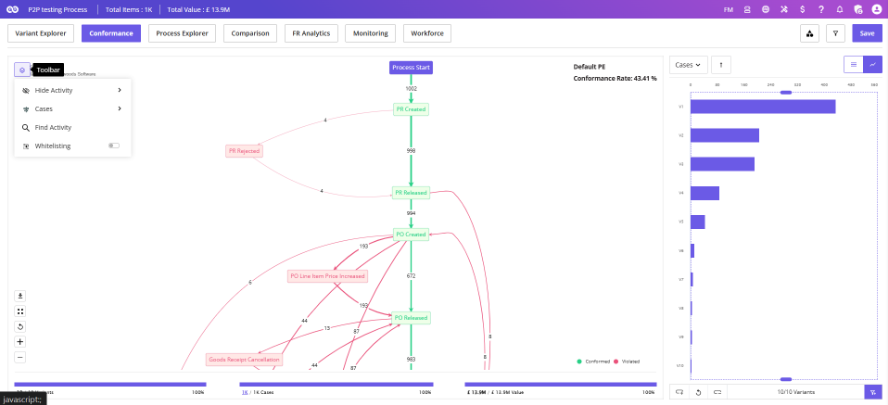
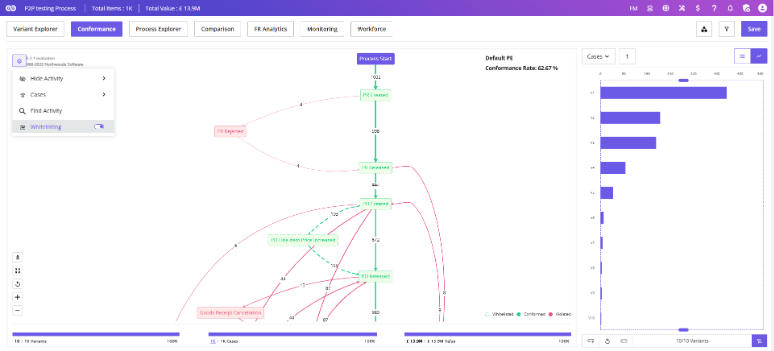
- Navigate to the Conformance Page
- Click on the Toolbar
- Select Violation Whitelisting from the dropdown
A toggle is available next to the Violation Whitelisting option.
- By default, the toggle is OFF
- Turning it ON enables visibility of whitelisted items in the process map
Violation Whitelisting Side Panel:
Clicking Violation Whitelisting opens a side panel containing a layered list of violations.
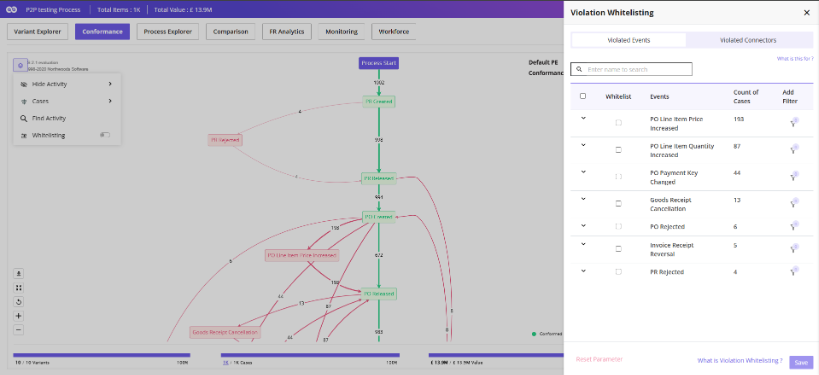
Side Panel Components
- Title
- Subtitle Subsection
- Switch Tabs: Violated Events (default) & Violated Connectors
- Information hyperlink
- Search Bar
- Table Columns
- Whitelisting Checkbox (multi-select)
- Events / Connectors
- Count of Cases
- Add Filters
- Footer
- Reset button
- “What is Violation Whitelisting?” hyperlink
Violated Events – Expandable View
By default, only violated events are displayed.
Views Available:
- Default View:
- Displays only violated events
- Expanded View:
- Displays FROM and TO events related to the violated event, along with: Count of Cases & Individual filter funnels
Violated Connectors Tab
It displays violated connectors between two ideal process events. It uses the same table structure as Violated Events. It does not support expandable views.
Additional Filtering
- Users can select one or multiple checkboxes to whitelist violations
- Clicking the filter funnel opens the Add Filters side panel
- Users can filter using Dimensions and Attributes
- Applied filters are shown in the “All Applied ( )” section
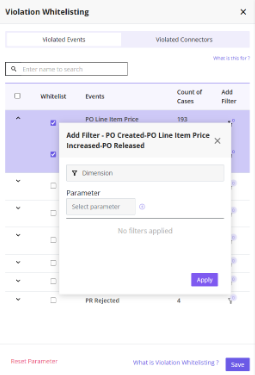
- Notes: If no checkboxes are selected: 1. Funnels and Reset button are disabled , 2. Save button remains inactive
Saving Whitelisted Violations
Steps:
- Clicking Save stores the selected whitelisted Events and Connectors.
- Once saved, turning the Violation Whitelisting toggle ON applies the whitelisted items across the Conformance module.
- Whitelisted Events and Connectors will be reflected in: Process Map, Conformance Rate and Violation Metrics
Visual Indicators in Process Map
Whitelisted events/connectors are shown in green
Represented using: Green arrows & Thick dotted lines
The legend includes a separate indicator for whitelisted violations
RCA Approach
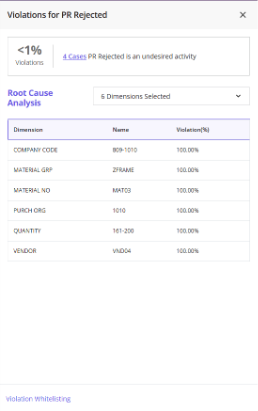
The RCA approach allows users to whitelist violations directly from the process map.
Steps for accessing via RCA:
- Left-click a violated event or connector in the process map
- RCA panel opens
- Click Violation Whitelisting → in the footer
RCA Whitelisting Screen
This screen displays a simplified table similar to the Master List.
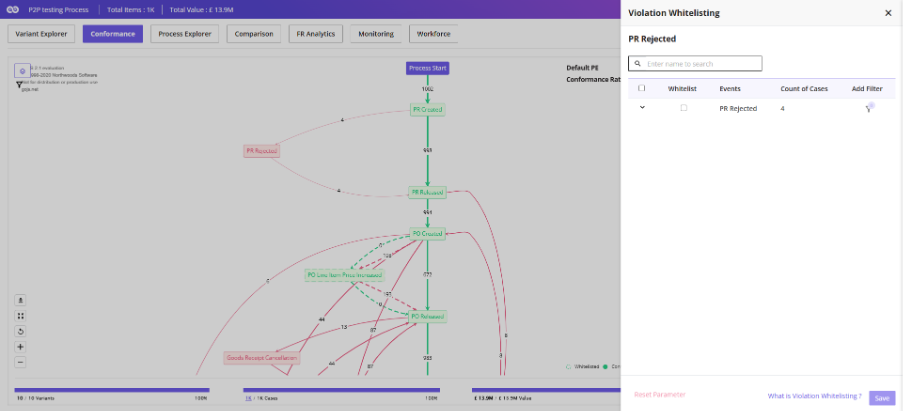
Table Components
- Title
- Subtitle
- Search bar
- Columns:
- Whitelisting Checkbox
- Events / Connectors
- Count of Cases
- Add Filters
- Footer:
- Reset
- “What is Violation Whitelisting?”
- Save
Supported RCA Scenarios
- Whitelisting a violated event
- Whitelisting a violated connector between:
- Two ideal events
- One ideal and one violated event
- Two violated events
Notes: RCA list and Master list remain synchronized