Filters
Filters help you focus on specific process data. Once applied, they are applied globally across the selected analysis, ensuring a consistent view throughout FUTUROOT.
Filters help you focus on specific process data by narrowing down the cases, activities, process flows, variants, or KPIs that you want to analyze.
Accessing Filters
The Filters option is available in the top taskbar.
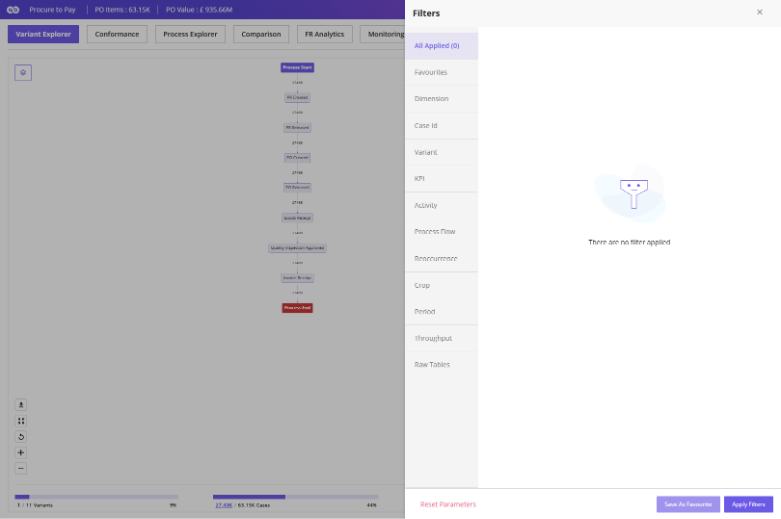
Clicking the Filters icon opens the Global Filters panel, where you can configure, manage, and apply multiple filters.
Applied filters are displayed in the All-Applied section of the panel.
Applying Filters
FUTUROOT provides several filter types to help you analyze your process from different perspectives.
Dimension Filter
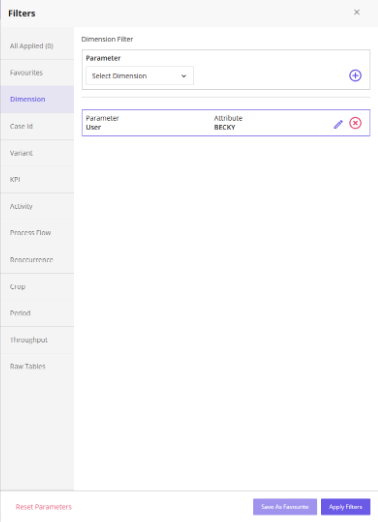
The Dimension Filter allows you to filter data using Case Dimensions and Event Dimensions.
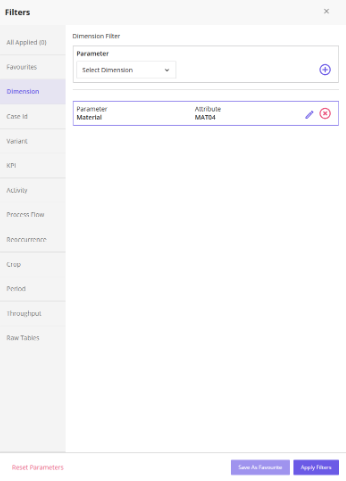
Examples
- Case Dimensions
- Event Dimensions
Steps
- Select a Dimension from the first dropdown.
- Select the corresponding Attribute from the second dropdown.
- Click the (+) icon to add the filter.
- Repeat the process to add additional filters if required.
- Click Apply Filters to apply all selected filters globally.
Activity Filter
The Activity Filter helps analyze cases based on the presence or position of specific activities within the process.
You can filter cases where an activity:
- Starts the process
- Ends the process
- Is present in the process
- Is absent from the process
Steps
- Select the first activity.
- Select the process flow condition.
- Select the second activity.
- Click the (+) icon.
- Click Apply Filters.
Multiple activity filters can be applied together.
Process Flow Filter
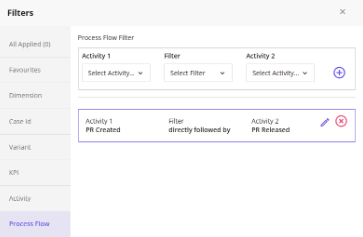
The Process Flow Filter allows you to analyze relationships between activities within the process.
Steps:
- Select the first activity.
- Select the process flow condition.
- Select the second activity.
- Click the (+) icon.
- Click Apply Filters.
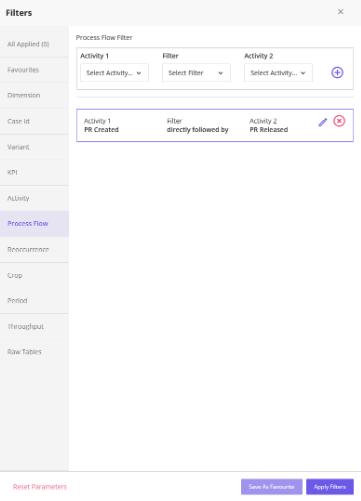
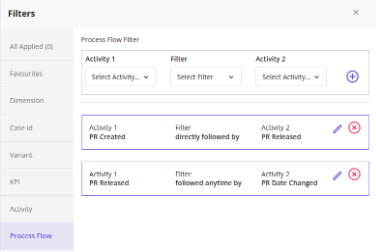
You can add multiple process flow conditions before applying them.
Reoccurrence Filter
The Reoccurrence Filter helps identify cases where an activity occurs more or less frequently than a specified threshold.
Example:
You can filter cases where an activity occurs:
- More than 3 times
- Less than 2 times
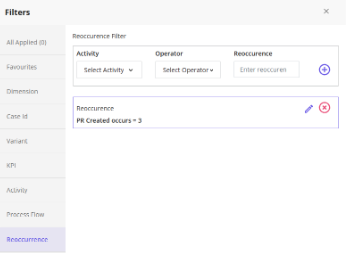
Multiple reoccurrence filters can be applied together.
Crop Filter
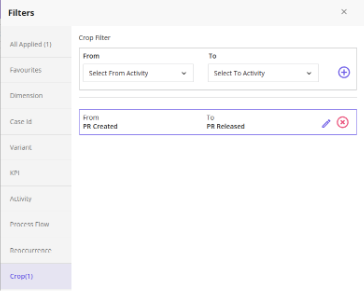
The Crop Filter allows you to focus only on activities occurring within a selected process segment.
Activities outside the selected scope are excluded from the analysis view.
This is particularly useful when analyzing a specific portion of a larger process.
Period Filter
The Period Filter allows you to analyze cases within a specific date range.
Steps:
- Select the start date.
- Select the end date.
- Apply the filter.
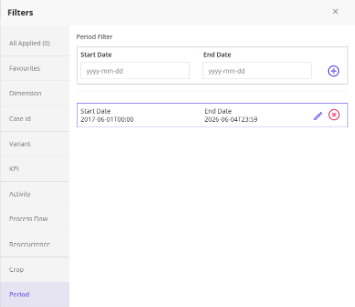
Only cases created within the selected period will be included in the analysis.
Throughput Filter
The Throughput Filter allows you to filter cases based on the time taken between two activities.
Steps:
- Define Start and End Activities
- Select activity occurrences (for repeated activities)
- Choose time units: Days, Hours, Minutes
- Define a throughput range
This filter is useful for identifying:
- Delayed cases
- Fast-track cases
- SLA compliance issues
Variant Filter
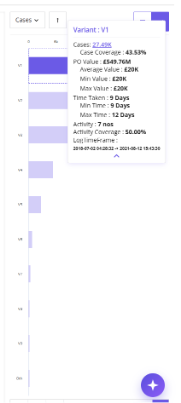
The Variant Filter allows you to filter the entire analysis using selected process variants.
Once applied, all modules display data only for the selected variants.
This includes metrics such as:
- Multiple variant selection
- Global application across the process
- Variants sorted by Cases and Most Used criteria by default
Steps
- Select one or more variants.
- Click the (+) icon.
- Click Apply Filters
KPI Filter
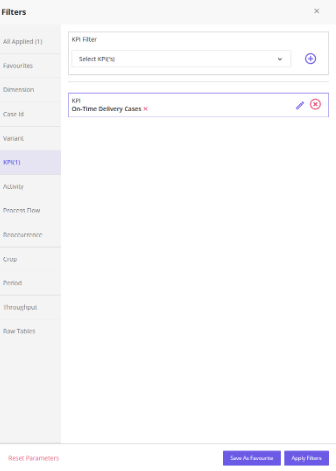
The KPI Filter allows you to filter data based on configured KPIs. Only active KPIs configured for the process are available for selection.
Steps:
- Select one or more KPIs.
- Click the (+) icon.
- Click Apply Filters.
The selected KPIs are applied globally across the analysis.
Save Filter Settings (Favourite Filters)
To improve efficiency, FUTUROOT allows you to save frequently used filter combinations.

Saving a Filter Combination
Steps:
- Apply one or more filters.
- Click Save as Favourite in the footer.
- Enter a name for the filter combination.
- Click Save.
Note: The button remains disabled until at least one filter is applied.
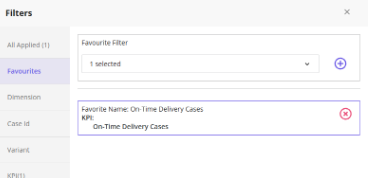
The saved filter combination will appear in the Favourite section and can be reused whenever required.
Managing Favourite Filters
Users can:
- Apply saved filter combinations
- Delete saved filter combinations
- Create multiple favourites
This feature helps eliminate the need to recreate commonly used filter configurations.
CASE ID Filter
The CASE ID Filter allows users to analyze specific process instances directly.
It is available below the Dimension Filter within the Global Filters panel.
Steps:
- Select one or more Case IDs.
- Click the (+) icon.
- Click Apply Filters.
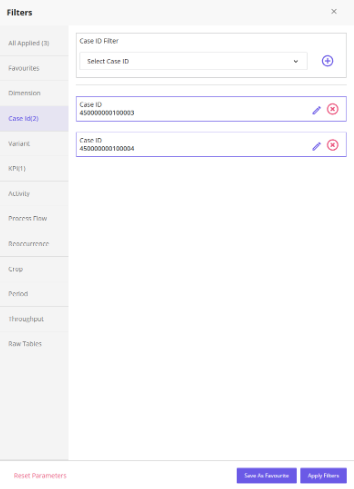
The analysis will display only the selected cases, allowing users to trace and analyze their complete process journey.
The CASE ID filter can also be applied directly from the Case Details screen.
Steps:
- Select one or more Case IDs using the checkboxes.
- Click Apply Filter.
The selected Case IDs are automatically applied as global filters, and the user is redirected to the Process Map.
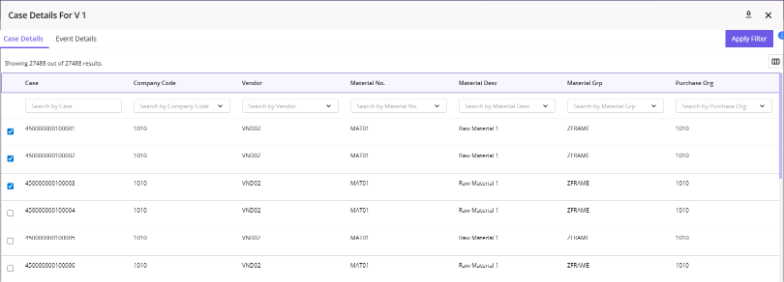
This provides a quick way to investigate specific cases without manually configuring filters.